watchOS 27: Top 10 Brilliant Hacks Every Apple Watch User Should Know
watchOS 27 hacks that save time on your Apple Watch, from the dynamic app grid and single tap gesture to Siri AI, battery tricks and the new Find My.
watchOS 27 is the biggest change to the Apple Watch in years, and most people are only using a fraction of it. Apple showed it off at WWDC in June 2026 and pushed it to everyone on September 14. Since then we have had a few point updates, with watchOS 27.2 bringing more Siri AI features in October and a security fix in November.
The headline items are easy to spot: a smarter Siri with its own app, a new app grid and a single Find My app. The more useful stuff is buried a layer deeper. A press of the Digital Crown now behaves differently. A pinch of two fingers can run your Smart Stack. Your watch may even switch off features on its own to save battery, and it will tell you when it does.
This guide collects the watchOS 27 hacks that actually make a difference day to day. Each one explains what the feature does, how to use it, and when it is worth your time. Some work on every supported watch. A few need the new Apple Watch Series 12 or Apple Watch Ultra 4, and we flag those clearly so you don’t go hunting for a setting you don’t have.
Whether you updated on day one or are still deciding, these watchOS 27 tips and tricks will help you get more from the watch on your wrist. Let’s start with the basics, then work through the ten hacks one by one.
Before You Start: Is Your Apple Watch Ready for watchOS 27?
Not every watch can run watchOS 27. With watchOS 27, Apple dropped a handful of older models this year, so check the list before you go looking for any of these features.
Supported models:
- Apple Watch SE 3
- Apple Watch Series 9, Series 10, Series 11 and Series 12
- Apple Watch Ultra 2, Ultra 3 and Ultra 4
No longer supported: the original Apple Watch Ultra, Series 6, 7 and 8, and SE 2.
How to Install watchOS 27
- Update your iPhone to iOS 27 first. The watch update won’t appear until you do.
- Put your watch on its charger and keep it close to your iPhone.
- Open the Watch app on your iPhone, or the Settings app on the watch, and go to General > Software Update.
- Tap Download and Install.
If you already have watchOS 27, check you are on the latest point release. watchOS 27.0.1 fixed a restart bug that hit some models, and later updates added security fixes, so staying current is worth it.
Top 10 watchOS 27 Hacks You Should Try Today
Here are the ten watchOS 27 features that give you the most value for the least effort.


1. Use the Dynamic App Grid to Reach Your Apps Faster
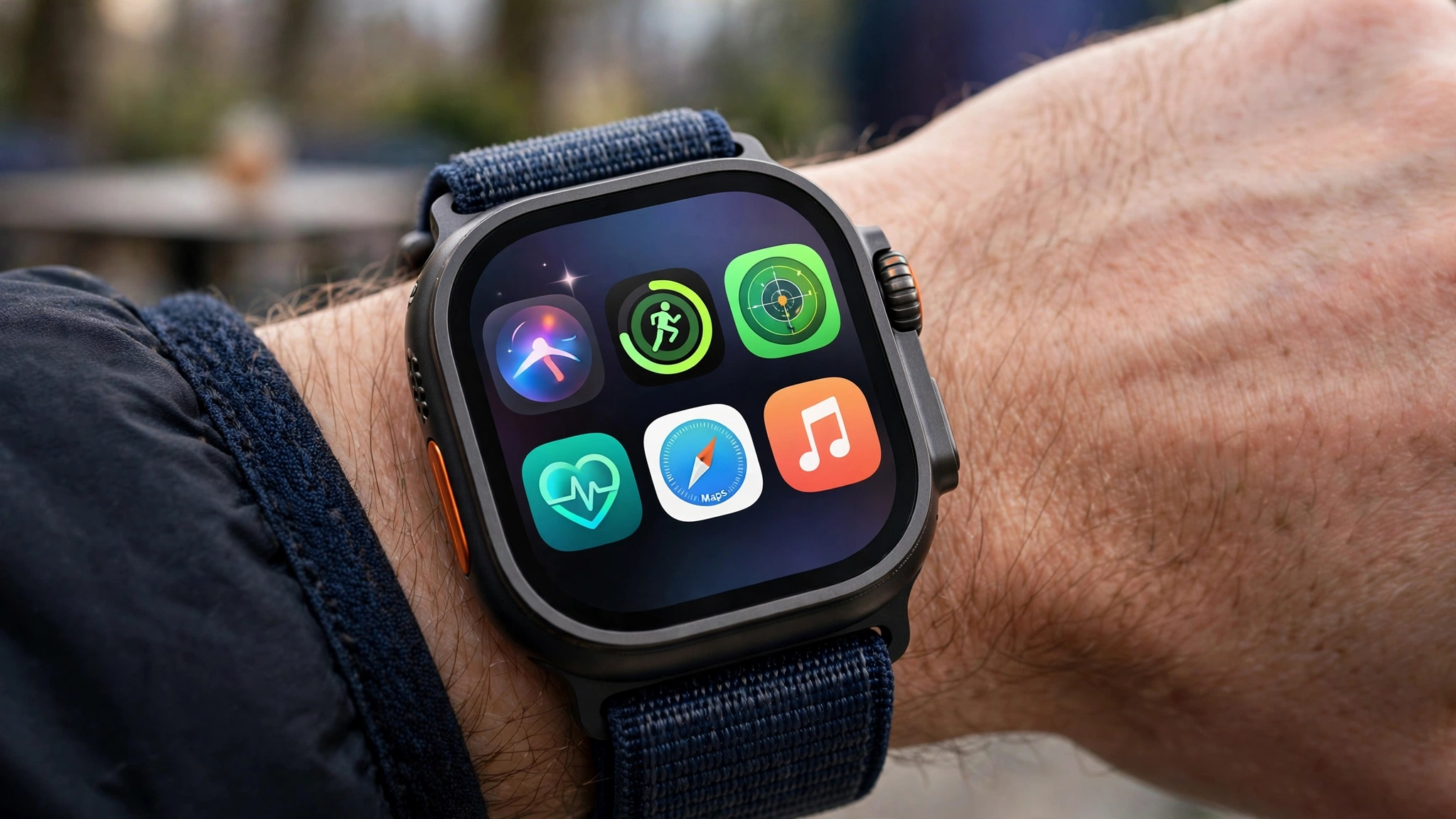
The first change you will notice in watchOS 27 is what happens when you press the Digital Crown. Instead of dumping you into a wall of tiny icons, watchOS 27 now shows a short set of apps that Siri thinks you need right now. These suggestions are based on what you use most and what you have opened recently, and they shift through the day.
How to get the most out of it:
- Press the Digital Crown once to see your suggested apps. If Siri AI is turned on, the Siri app sits in the middle.
- Press the Crown again to go back to your watch face.
- Press and then swipe up to jump straight to the full app grid when the app you want isn’t in the suggestions.
The trick with this watchOS 27 change is patience. The dynamic app grid learns from your habits, so give it a week of normal use. After that, the apps you need in the morning (weather, calendar, workouts) tend to be different from the ones it offers at night, and you will open most apps with one press and one tap.
2. Control the Smart Stack With the Single Tap Gesture
Before watchOS 27, Double Tap was handy, but it took two pinches for every action. watchOS 27 adds a single tap gesture: touch your index finger and thumb together once on the hand wearing the watch.
What the watchOS 27 single tap can do:
- Tap twice to open the Smart Stack widgets view.
- Tap twice again to move to the next widget.
- Tap once to select the widget in front of you.
That last step is the useful part. With one hand busy (carrying groceries, holding a coffee, gripping a bike handlebar), you can open the Heart Rate app, start a suggested workout or play and pause music without touching the screen.
Tip: if the watchOS 27 gesture feels unreliable, keep your wrist relaxed and make a firm, quick pinch. Slow or soft taps are easier for the watch to miss.
3. Talk to Siri Like a Person, Not a Search Box
The new Siri AI on Apple Watch is one of the biggest changes in watchOS 27. Siri can now hold a back-and-forth conversation, so you can ask a follow-up question without repeating everything. It can also pull from your personal data in apps like Mail, Messages, Notes, Reminders and Calendar, search the web and take actions in apps such as Messages, Music and Reminders.
There is also a dedicated Siri app that keeps all your conversations in one place and syncs with your iPhone, iPad and Mac. Ways to use Siri in watchOS 27 well:
- Ask chained questions: “When is my next meeting?” then “Text Sarah that I’ll be ten minutes late.”
- Use it for quick lookups when your phone is in another room.
- Open the Siri app to scroll back through earlier answers instead of asking again.
Keep in mind: this Siri doesn’t run fully on the watch. It needs a paired iPhone that supports Apple Intelligence, a supported language, and some server features have daily limits.
4. Set Up the Siri Modular Watch Face
This is one of the more underrated watchOS 27 hacks. The new Siri Modular face has a complication that shows whichever Smart Stack widget you used most recently, and it updates on its own. Another complication opens the Siri app with a single tap.
How to set it up:
- Press and hold your current watch face.
- Swipe to the end and tap the + button.
- Find Siri Modular and add it.
- Tap Edit to change the complications and time format.
The result is a watchOS 27 face that adapts to your day. If you checked a timer five minutes ago, it is still right there. If you just looked at your boarding pass, that shows instead. You spend less time digging and more time glancing.
5. Let watchOS 27 Manage Your Battery for You
Battery life is the most common Apple Watch complaint, and watchOS 27 takes a smarter approach to it. The watch can now notice features you never use, such as Raise to Speak, gestures or Start Workout reminders, and switch them off to save power. It sends you a notification when it does.
How to stay in control of watchOS 27 battery suggestions:
- When the notification appears, read it before you dismiss it. If you actually want that feature, you can override the change and keep it turned on.
- Leave the suggestions on if you rarely touch those features. The savings add up over a day.
watchOS 27 Workout Power Modes for Long Sessions
For long runs, hikes or race days, watchOS 27 adds two workout power modes:
- Extended Workout turns on Low Power Mode for the length of the workout. Some running metrics aren’t available.
- Max Extended Workout works with Outdoor Walk, Outdoor Run and Hiking. It stretches battery life further but drops some metrics and splits.
When to use them: pick Extended Workout for a half marathon or a long cycle. Save Max Extended Workout for all-day hikes, when finishing with a working watch matters more than perfect split data. These two modes are among the most practical Apple Watch battery tips this year.
6. Train With Workout Buddy, Even Without Your iPhone
Workout Buddy was the AI-powered voice coach that arrived last year. In watchOS 27, it no longer needs your iPhone nearby. As long as your watch has Wi-Fi or cellular, you can leave the phone at home and still hear spoken encouragement and stats.
What’s new in watchOS 27:
- Insights on your progress in pace, distance and workout duration, so you know when you are improving.
- Support for Spanish in addition to English.
Hack: if you have a cellular Apple Watch, watchOS 27 turns it into a real phone-free running coach. Pair it with downloaded music or podcasts and you can head out with nothing but your watch and AirPods.
7. Find Everything From One App With the New Find My
Older watchOS versions split Find My into three separate apps: Find Devices, Find People and Find Items. watchOS 27 merges them into one Find My app with a map at the center, plus quick actions like getting directions to a person or item.
Why the watchOS 27 Find My app helps:
- You see your devices, your AirTags and your friends on a single map.
- Precision Finding now works from the watch for a paired iPhone, AirTag 2 and AirPods Pro 3, guiding you to the exact spot.
Hack: next time your iPhone vanishes into a sofa cushion, skip the old ping and use Precision Finding from your wrist. It points you in the right direction instead of making you follow a sound around the room.
8. Make the Smart Stack Work Harder
The Smart Stack in watchOS 27 is much better at guessing what you need. New suggestions include:
- Parked Car location, so you can find your car in a big lot
- Birthday reminders with a prompt to send a message
- Pinned messages from people you talk to most
- Noise alerts and Theater Mode reminders
- Transit and identity cards, including low balance warnings
Wallet also got an upgrade. Custom passes you create in iOS 27 sync to your watch, and you can pin a card to the Smart Stack. On watchOS 27, if you use a gym membership, library card or office pass every day, pinning it saves you from opening Wallet and scrolling.
Tip: if a suggestion keeps showing up that you don’t care about, remove it from the stack. The fewer distractions in there, the more useful the stack becomes.
9. Use Call Context During Business Calls
Call Context is a small watchOS 27 feature that shines when you need it. During a call with a business, your watch can show relevant details from your apps. Apple’s own example is calling an airline and seeing your flight confirmation code from Mail right on your wrist.
Where watchOS 27 Call Context helps most:
- Calling about a delivery, when you need an order number
- Talking to your bank or a support line
- Confirming a booking with a hotel or restaurant
With watchOS 27, there’s no more putting the call on speaker while you dig through your inbox for a reference number.
10. Take Advantage of the New Health and Fitness Upgrades
watchOS 27 brings several Apple Watch health features. Some reach every supported watch, while others need the latest hardware.
watchOS 27 Upgrades for All Supported Watches
- Better treadmill tracking. A redesigned pedometer model uses machine learning to measure treadmill runs and walks more accurately.
- Cycle Tracking for perimenopause and menopause. You can log related symptoms and read educational resources. Users aged 40 and older can get a notification if logged patterns suggest perimenopause.
- Step syncing. Step counts in the Fitness app now sync with the Health app on iOS 27.
Extra watchOS 27 Features on Series 12 and Ultra 4
- Readiness app: a score that tells you when you are ready for hard effort and when to rest.
- Live heart rate and HRV: a real-time chart of heart rate and heart rate variability.
- Daytime vitals: resting heart rate and HRV during the day, not just overnight.
- Steps complication: real-time steps right on your watch face.
- Shazam in the Smart Stack and Sound Recognition, which alerts you to sounds like a doorbell, siren or crying baby.
Hack: if you own a Series 12 or Ultra 4, check the Readiness score before a hard workout. On a low day, swap intervals for an easy walk.
What Changed or Disappeared in watchOS 27
Not every change is an addition. Reports from Tom’s Guide note that watchOS 27 removes the Walkie-Talkie app, so anyone who relied on it will need to switch to voice messages or calls. Apple also refreshed the Liquid Glass design with more even refraction and better contrast, which makes text easier to read in bright light.
If you share a family plan, the watchOS 27 version of the Apple Watch For Your Kids setup and a redesigned Screen Time interface make it easier to set schedules and approve contacts for a child’s watch.
Quick Reference: Which watchOS 27 Hacks Work on Your Watch?
| Hack | All supported watches | Series 12 / Ultra 4 only |
|---|---|---|
| Dynamic app grid | Yes | |
| Single tap gesture | Yes | |
| Siri AI and Siri app | Yes (needs Apple Intelligence iPhone) | |
| Battery suggestions and workout power modes | Yes | |
| Workout Buddy without iPhone | Yes | |
| Unified Find My | Yes | |
| Readiness, live HRV, Steps complication | Yes | |
| Shazam and Sound Recognition | Yes |
Feature availability can vary by country and language. Apple’s official guide to what’s new in watchOS 27 lists the requirements for each feature, and 9to5Mac’s watchOS 27 roundup has more detail on the gestures and app grid.
Conclusion
watchOS 27 makes the Apple Watch faster to use and smarter about your day, and the ten hacks in this guide are the quickest way to feel the difference: press the Digital Crown for the dynamic app grid, pinch once to run the Smart Stack, talk to the new Siri AI like a person and try the Siri Modular face, let the watch trim unused features and use Extended Workout modes to save battery, run with Workout Buddy without your iPhone, track down lost gear with the unified Find My, pin your most-used Wallet cards, lean on Call Context during business calls, and use the new health tools, with Readiness and live HRV on the Series 12 and Ultra 4. Spend ten minutes setting up these watchOS 27 hacks and your watch will save you time every single day.