5 Easy Steps to Hide and Unhide Apps on Your iPhone or iPad Safely
Hide apps on iPhone in 5 easy steps using built-in Face ID privacy tools. Learn how to hide and unhide apps safely on iOS 18.
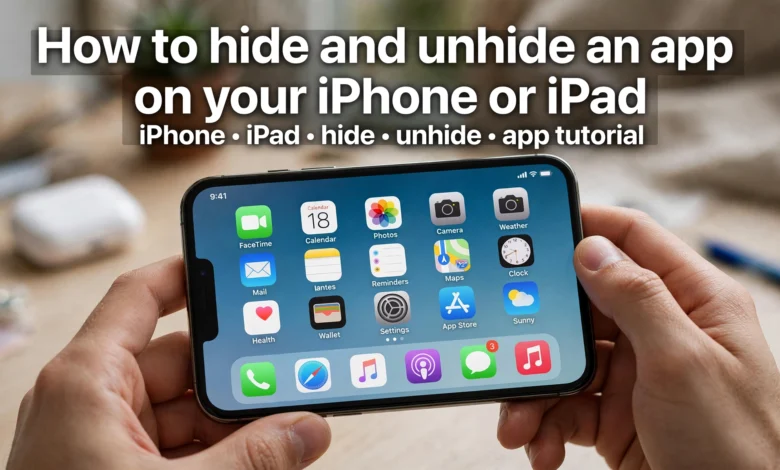
Everyone has an app or two they’d rather keep off the home screen. Maybe it’s a dating app, a banking app, a journal, or just something you don’t want a friend to spot while you’re handing them your phone to look at a photo. Whatever the reason, hide apps on iPhone is one of the most searched privacy questions among iOS users, and for good reason: your phone holds a lot of personal information, and not all of it needs to be visible every time someone glances at your screen.
The good news is that Apple has made this a lot easier than it used to be. For years, people relied on clunky workarounds like burying apps inside nested folders or renaming them something boring. Those tricks technically worked, but anyone with five minutes and a bit of curiosity could still find what you were hiding. Since iOS 18, Apple built a real hiding mechanism directly into the operating system, one that locks an app behind Face ID, Touch ID, or your passcode and tucks it away in a dedicated Hidden folder that isn’t visible unless someone can unlock your device.
In this guide, we’ll walk through exactly how to hide an app on iPhone or iPad, how to unhide it later, what actually happens to notifications and search results when you hide something, and a few older tricks that still work if you’re on an operating system that predates iOS 18. By the end, you’ll know every practical way to keep sensitive apps out of view without deleting anything or losing your data.
Why You Might Want to Hide an App on Your iPhone
Before jumping into the how-to, it helps to know why so many people search for this. The reasons tend to fall into a handful of categories:
- Privacy from people who borrow your phone. Handing your phone to a friend, coworker, or family member to check a photo or send a text shouldn’t mean they see everything else installed on it.
- Decluttering a busy home screen. Some people hide apps they use rarely just to keep their main screens clean, without deleting the app and losing its data or having to redownload it later.
- Keeping sensitive information private. Health apps, banking apps, therapy or journaling apps, and messaging apps often contain information people would rather keep locked down.
- Shared devices. Families sharing an iPad, or couples who occasionally hand off a phone, often want a layer of separation between shared use and private use.
Whatever your reason, Apple’s built-in tools cover almost every scenario without needing a third-party app.
Method 1: Hide and Lock Apps Using Face ID or Touch ID (iOS 18 and Later)
This is the official, Apple-supported way to hide an app on iPhone, and it’s by far the most secure option available. It requires iOS 18 or iPadOS 18 or later, so if you don’t see this option, check Settings > General > Software Update first.
Here’s how it works, step by step:
- Find the app. Locate it on your Home Screen, in the App Library, or by searching with Spotlight.
- Touch and hold the app icon until the quick actions menu appears.
- Tap “Require Face ID” (this will say “Require Touch ID” on devices without Face ID, or “Require Passcode” if biometrics aren’t set up).
- You’ll then see two choices: Require Face ID or Hide and Require Face ID. The first option locks the app in place, meaning it stays visible on your Home Screen but can’t be opened without authentication. The second option does both: it locks the app and removes it from view entirely.
- Choose “Hide and Require Face ID”, authenticate with your face, fingerprint, or passcode, then tap Hide App to confirm.
Once you’ve done this, the app icon disappears from your Home Screen, your App Library, and Spotlight search. It’s moved into a dedicated Hidden folder, which sits at the very bottom of the App Library, below all your other folders.
Apple’s own support documentation walks through this same sequence: tap Require Face ID (or Touch ID or Passcode), tap Hide and Require Face ID again, authenticate, then tap Hide App, which matches exactly what’s described above.


What Happens to Notifications When You Hide an App
This is one of the most common follow-up questions, and it’s worth understanding clearly. When you lock an app without hiding it, notifications still show up normally on your lock screen and in Notification Center. But when you hide an app, its notifications are suppressed too. You won’t get banners, badges, or previews from a hidden app, whether it’s a message, a call from a VoIP app, or a reminder. This is intentional. If notifications kept popping up, hiding the app would be pointless since anyone glancing at your lock screen would still know it exists.
Keep in mind this also means you might miss something time-sensitive. If you rely on a hidden app for urgent alerts, this trade-off is worth thinking through before you hide it.
How to Unhide an App on iPhone or iPad
Hiding an app doesn’t delete it or its data, and reversing the process only takes a few taps.
Finding a Hidden App to Open It
If you just want to use a hidden app without permanently unhiding it, here’s how:
- From your Home Screen, swipe left past all your pages until you reach the App Library.
- Scroll down and tap the Hidden folder at the bottom.
- Authenticate with Face ID, Touch ID, or your passcode.
- Tap the app you want to open, and authenticate again if prompted.
You can also get there through Settings > Apps > Hidden Apps, which will similarly ask you to authenticate before showing the list.
Permanently Unhiding an App
If you want the app back on your Home Screen and out of the Hidden folder for good:
- Open the Hidden folder in the App Library and authenticate.
- Touch and hold the app icon.
- Tap “Don’t Require Face ID” (or Touch ID or Passcode).
- Authenticate one more time to confirm.
Once you do this, the app returns to its normal spot and behaves like any other app on your device, complete with notifications and visibility in search.
Method 2: Remove an App From the Home Screen Without Deleting It
If full biometric hiding feels like overkill and you just want a tidier Home Screen, there’s a lighter option. This doesn’t hide an app from Face ID or lock it, it just clears the icon off your Home Screen while keeping the app installed and fully functional.
- Touch and hold the app icon until the quick actions menu pops up.
- Tap the minus (–) icon, or choose “Remove App” followed by “Remove from Home Screen.”
- Confirm the action.
The app moves into your App Library, where it’s still searchable and easy to find, just no longer sitting on your main screen. This won’t stop someone from finding it if they look through the App Library or use Spotlight search, so it’s more about decluttering than privacy.
Method 3: The Classic Folder Trick (For Older iOS Versions)
If you’re stuck on an iOS version older than 18, or you just want a quick low-effort method, the folder trick still works, even though it offers no real security.
- Touch and hold any app icon until the icons start to jiggle.
- Drag one app on top of another to create a folder.
- Move the apps you want to tuck away into that folder.
- Swipe right inside the folder to add extra pages, and drag your apps onto a later page rather than the first one.
- Rename the folder something forgettable, like “Utilities” or “Misc.”
This won’t stop anyone determined to look through your folders or use Spotlight search to find the app by name, so treat it as a decluttering trick rather than a genuine privacy fix.
Method 4: Hide an Entire Home Screen Page
Beyond hiding individual apps, iOS also lets you hide entire pages of your Home Screen. This is handy if you’ve grouped several sensitive apps together and want to keep the whole page out of sight rather than hiding each app one by one.
- Touch and hold an empty area of your Home Screen until the icons jiggle.
- Tap the row of dots near the bottom of the screen to open the Page Editor.
- Uncheck the box beneath the page you want to hide.
- Tap Done.
The page disappears from your normal swipe-through view but the apps on it are still accessible through the App Library or by searching for them directly.
Method 5: Use the Shortcuts App to Disguise an App
For a more creative approach, some people use the Shortcuts app to create a disguised launcher for an app rather than hiding the original icon.
- Open Shortcuts and create a new shortcut.
- Set the action to open the app you want to disguise.
- Tap the share icon, then add it to your Home Screen.
- Give the shortcut a new name and choose a different icon or photo.
This doesn’t hide the original app, so you’d still want to remove that icon from your Home Screen separately, but it gives you a renamed, re-skinned launcher that doesn’t announce what it actually opens.
Important Limitations to Know Before You Hide Apps
A few things are worth knowing so you don’t run into surprises:
- Some built-in apps can’t be hidden. System apps that ship with iOS, such as Camera, Contacts, Settings, and Calculator, generally cannot be locked or hidden. This restriction applies to Apple’s own pre-installed apps, not apps you’ve downloaded from the App Store.
- Hiding and locking status doesn’t sync across devices. If you hide an app on your iPhone, it stays visible and unlocked on your iPad unless you repeat the process there. Apple confirms this directly, noting that the locked or hidden status of an app only applies to the device where you set it.
- Hidden apps can still surface in a few places. Your hidden app’s name may still be visible in Screen Time reports, in Battery Health & Charging usage stats, and in your App Store purchase history. If you want to fully scrub an app’s presence, you’ll want to check those areas too.
- Children under 13 in a Family Sharing group can’t hide apps. This is a built-in restriction tied to parental controls.
Hiding vs. Locking: Know the Difference
It’s easy to mix these two up, so here’s the short version. Locking an app keeps its icon visible on your Home Screen but requires Face ID, Touch ID, or your passcode before it opens. Hiding an app does that too, but also removes the icon entirely and moves it into the Hidden folder. If you want an app to stay easy to find but just protected from casual snooping, lock it. If you want it to disappear completely, hide it.
Should You Use a Third-Party App Instead?
You might come across apps in the App Store promising to “vault” or disguise your files and apps. In most cases, these aren’t necessary anymore. Apple’s built-in Hide and Require Face ID feature covers the core use case for free, without asking you to trust a third-party developer with access to your data. If you’re specifically looking to store sensitive documents, photos, or notes offline rather than hide an app icon, a dedicated password manager or encrypted notes app might be worth exploring, but for hiding the apps themselves, Apple’s native tools are the more secure and more straightforward choice. For a broader look at built-in privacy tools, Apple’s own guide on locking and hiding apps is worth bookmarking, and Engadget’s overview of hiding apps on iPhone and iPad covers a few additional edge cases if you want a second reference point.
Frequently Asked Questions
Does hiding an app delete its data? No. Hiding, locking, or removing an app from your Home Screen never deletes the app itself or any data stored inside it. Everything stays exactly as it was; it’s just out of view or locked behind authentication.
Can someone find a hidden app without my passcode? Not through normal means. Once an app is hidden, it won’t show up in Spotlight search, the App Library, or notifications. Someone would need your Face ID, Touch ID, or passcode to reach the Hidden folder and see it.
Will I stop getting notifications from a hidden app? Yes. Hiding an app suppresses its notifications completely, including banners, badges, and lock screen previews. If you only lock an app without hiding it, notifications continue as normal.
What iOS version do I need to hide apps this way? You’ll need iOS 18 or iPadOS 18 or later. If the “Require Face ID” option doesn’t appear in your quick actions menu, check for a software update in Settings.
Can I hide more than one app at a time? There’s no bulk option, but you can repeat the same steps for as many apps as you’d like. Each one gets sorted into the same Hidden folder.
Conclusion
Keeping certain apps off your Home Screen doesn’t have to mean deleting them or relying on shaky workarounds. With iOS 18 and later, Apple built a genuine privacy tool right into the system: touch and hold an app, choose Hide and Require Face ID, and it’s tucked safely into the Hidden folder in your App Library, protected by the same biometrics that unlock your phone. Whether you’re decluttering a busy Home Screen, keeping sensitive apps away from prying eyes, or just handing your phone to someone without worrying about what they might scroll past, these built-in methods give you full control. And if you ever change your mind, unhiding an app takes just a few taps, with nothing lost along the way.